

The Kamili One Dashboard provides an instant overview of your workspace activity and upcoming commitments.
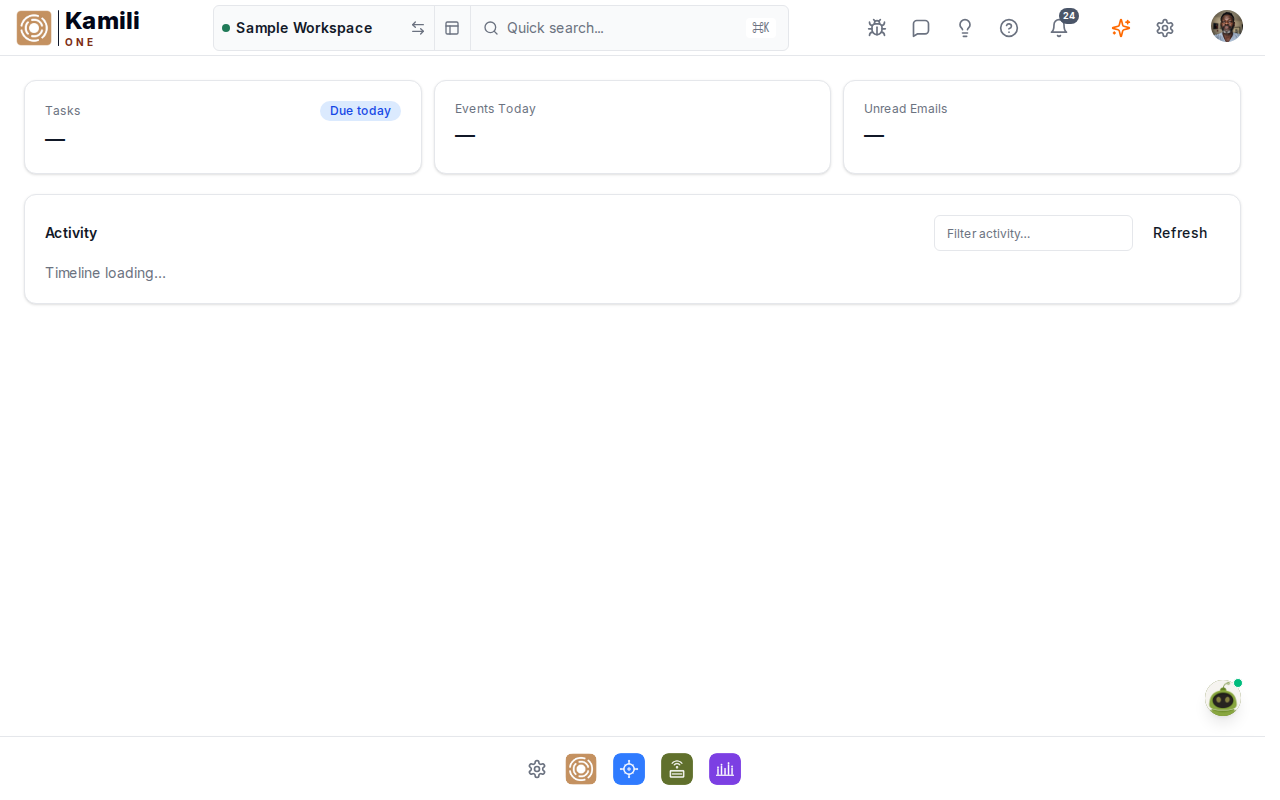
Overview of the Hub Dashboard
New Kamili One users start with the Compact dashboard layout. Compact keeps more information visible without requiring excessive scrolling.
The default dashboard includes:
- Greeting & Briefing Area — displays personalized morning/afternoon greetings and instant status summaries.
- Quote Widget — a 3x1 tile presenting daily inspiration or workspace announcements.
- Clock Tile — a dedicated time zone clock in the upper-right corner.
- Quick Links — fast navigation to Reminders, Files, Notes, Chat, Tasks, and Calendar.
Customizing Dashboard Widgets
You can adjust the layout and visibility of your dashboard tiles:
- Rearranging tiles — click and drag widget headers to reorder your workspace view.
- Density controls — switch between Compact, Comfortable, and Spacious grid layouts in Settings -> Dashboard.
- Widget actions — each widget footer includes icon controls to refresh, configure, or temporarily hide the tile.
Workspace Context
The top navigation bar displays your currently active workspace (such as Sample Workspace). Clicking the workspace indicator lets you switch workspaces or jump directly into workspace settings.