
Kamili One Chat keeps workspace conversations together. In a collaborative workspace, choose Workspace tools in the top bar, then Chat and Open full Chat. On mobile, choose More > Chat. You can also open Chat directly. Channels are listed inside Chat; there is no separate Channels icon in the main navigation.
Navigating Channels and Direct Messages
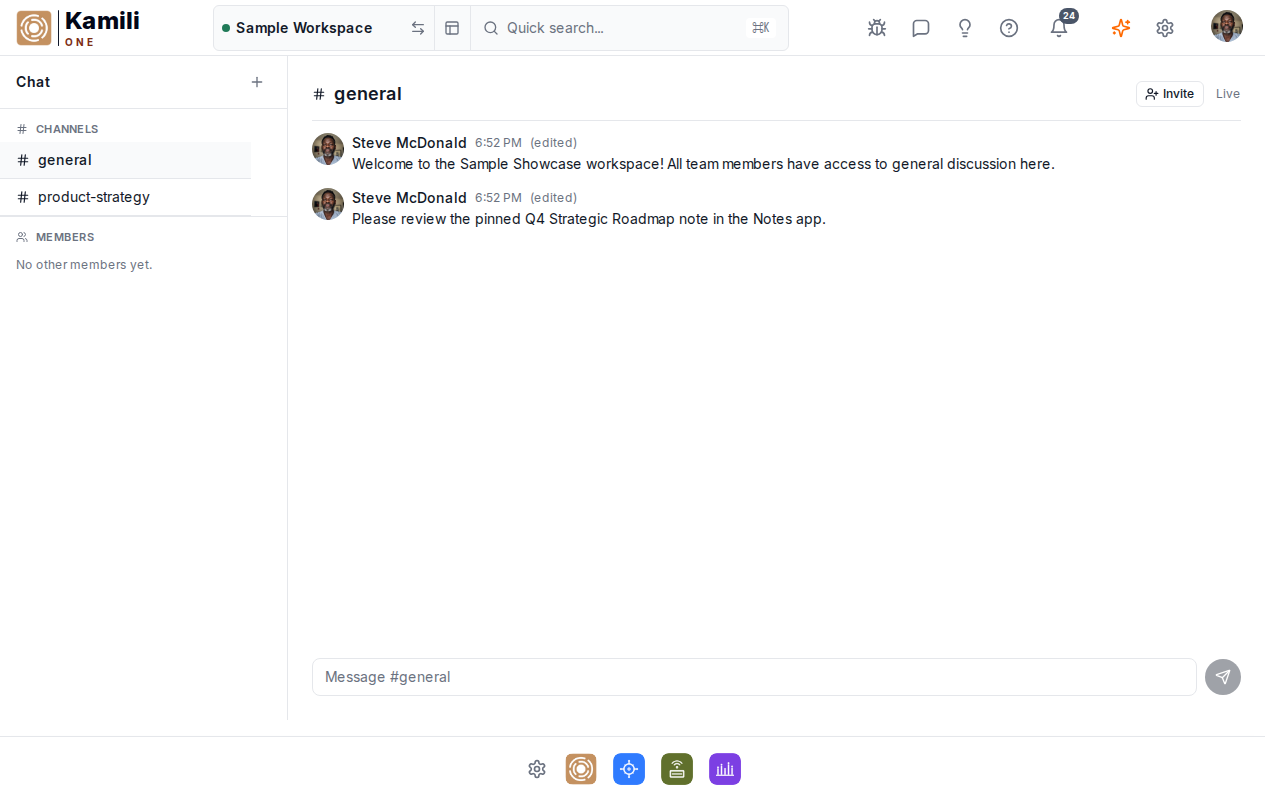
The Chat interface provides organized channels and conversation feeds.
Key channel features:
- Channel sidebar — view public channels (e.g. #general, #marketing, #engineering) and direct messages.
- Channel selection — click a channel name to open its conversation.
- Active conversation — shows the channel history and message composer.
Creating a Channel
Set up dedicated channels for projects, teams, or discussion topics.
To create a channel:
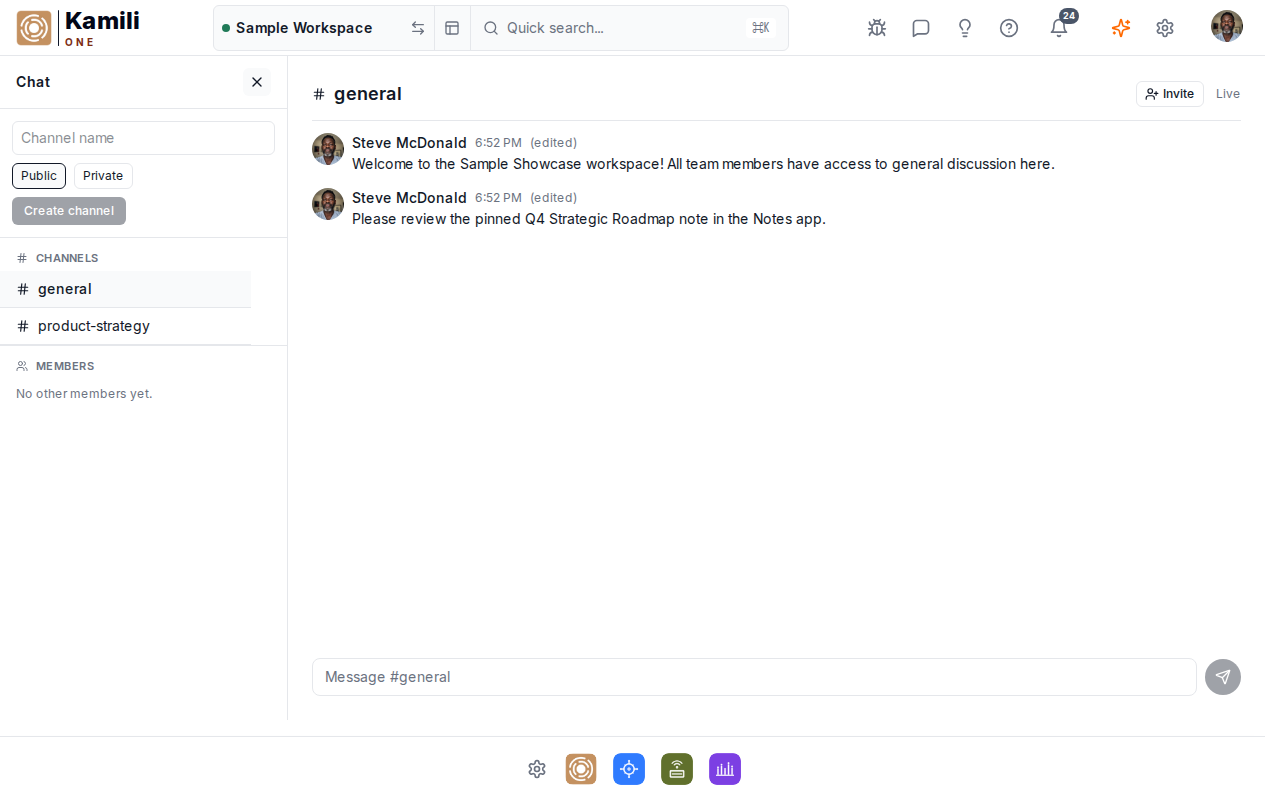
- Open the full Chat view and click the plus button labeled New channel in the Chat header.
- Enter a Channel name.
- Choose Public or Private. For a private channel, select the workspace members to include.
- Click Create channel. The new channel opens in Chat.
Sending a Message
Select a channel from the Chat navigation, type into the message composer, and press Enter or the send button. The Members area lets you open a direct message with another workspace member.