

The Files app stores documents and attachments for your workspace. In Kamili One, choose Workspace tools in the top bar, then Files and Open full Files. On mobile, choose More > Files. You can also open Files directly.
Browsing Workspace Files and Folders
Navigate your files with clear storage visibility and breadcrumb controls.
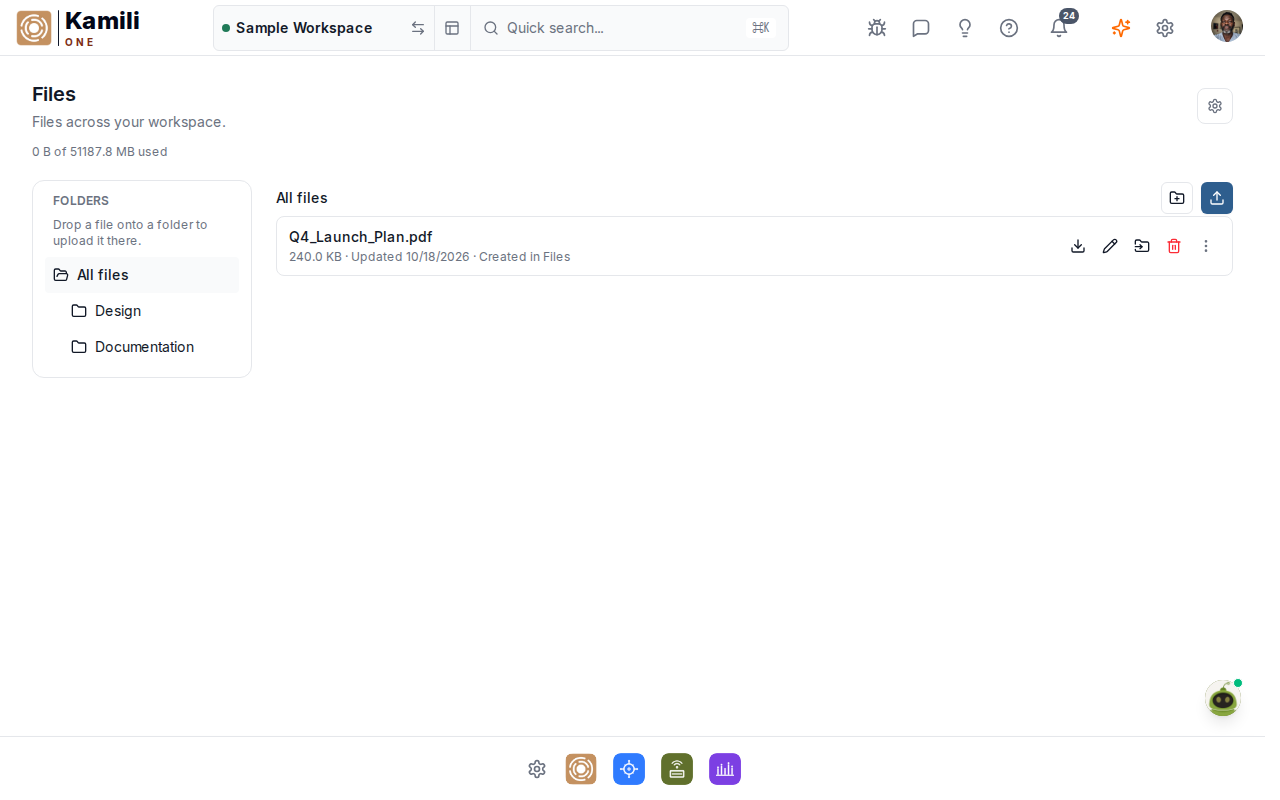
The Files browser includes:
- Storage quota bar — shows current usage (for example, 5.7 MB of 1.0 GB used) and upgrade options.
- Folder list — choose All files or a folder to change the files shown.
- File list — shows each file name and its details in the selected folder.
- Quick actions — download, rename, move, or delete files directly from row menus.
Creating and Managing Folders
Organize your workspace assets into logical folder structures.
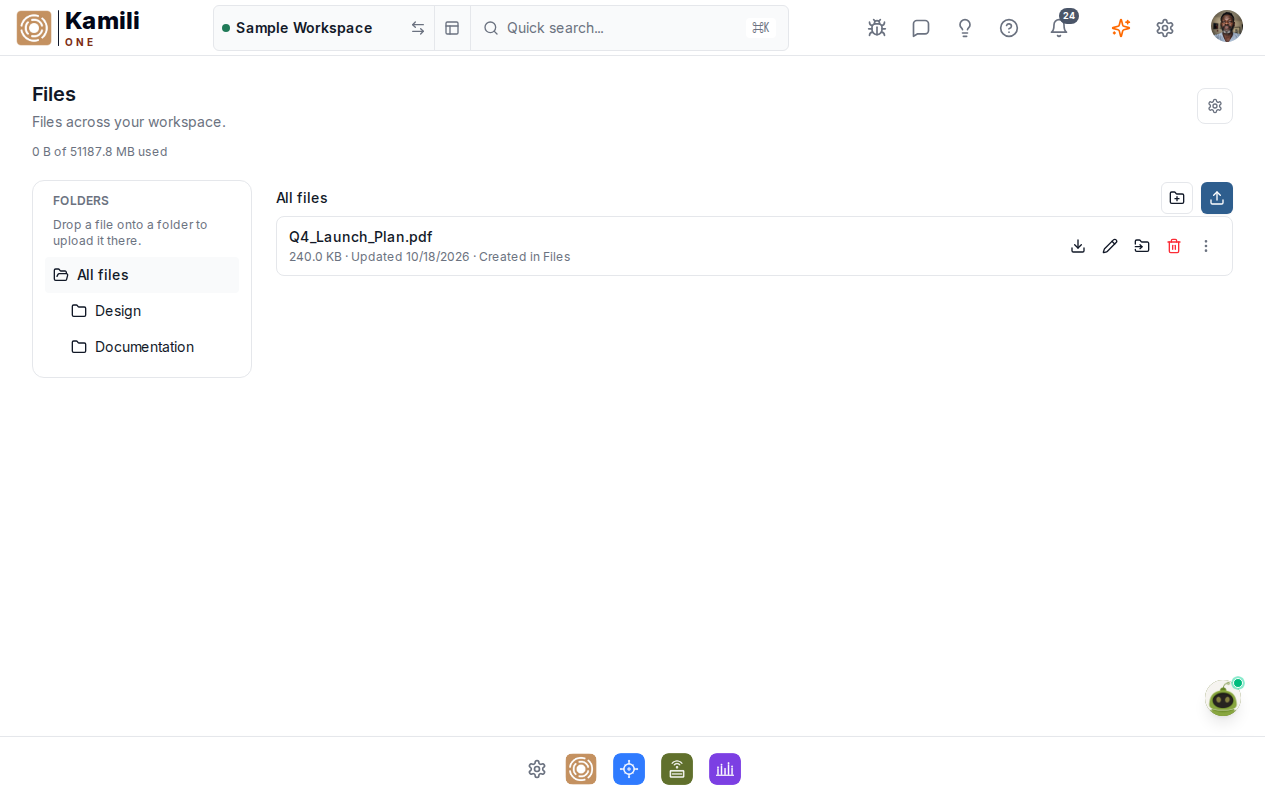
To create a folder:
- Open the full Files view and select the workspace where the folder belongs.
- Click the folder-plus button labeled New folder above the folder list.
- Enter a folder name, then click Create folder.
- Click the new folder in the folder list to open it before uploading files.
Uploading and Managing Files
- Drag and drop — drag files directly from your desktop into the browser window to begin instant upload.
- Upload control — click the Upload button in the full Files view and choose a file.
- Supported formats — PDFs, images (PNG, JPEG, SVG, WebP), office documents (Word, Excel, PowerPoint), text files, and zip archives.
- Storage limits — each plan includes generous storage allocations that can be reviewed in Settings -> Billing.
Finding Workspace Files
Choose a folder in the left folder list, then review the files shown on the right. Select All files to return to the top level.